

Creating Customized Fields
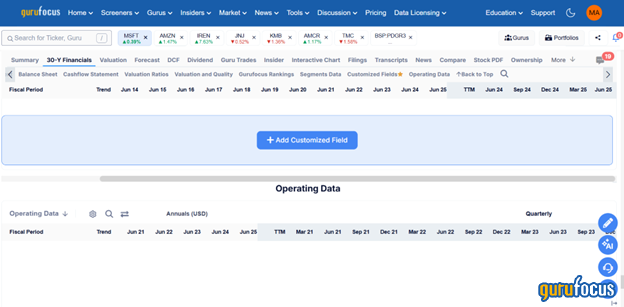
Creating customized fields allows you to add your own data points to the GuruFocus platform so you can track the information that matters most to you. Whether it's personal notes, target prices, or custom metrics, you can tailor your workspace to reflect your unique investing approach. To get started on creating your own customized field, after you have selected a stock from the “Search for Ticker” section, select the “30-Y Financials tab”. Then, press the blue button where it says “+ Add Customized Field”.
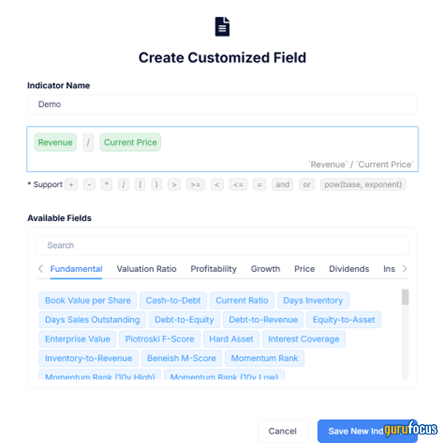
Now you can label your customized field under where it says “Indicator Name”. Once you have given your customized field a name, you can start entering financial terms to pinpoint exactly what you'd like to see. If you want to use some of the financial terms already provided, simply start selecting any of the blue ones under “Available Fields”. Then press the big blue button labeled “Save New Indicator”.

After your new field is created, it will show up in this table. To change the order of the fields or delete any fields, click the edit icon at the top middle to enter the edit mode.
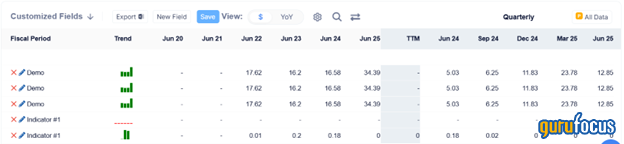
In edit mode, you can change the order of the fields by dragging the field in the order you want. To delete the field, click the red “X” on the left side. After you have finished editing, click the “Save” button.
Now you know how to make your very own customized field. If you are interested in doing this, we welcome you to sign up for our Free 7-day Trial!

